Pages

Showing posts with label android. Show all posts

Thursday, February 12, 2015

WeaRSS Internet Coverage

WeaRSS has been getting some coverage on the internet; both on the web and in the land of Android apps. I thought I would share the love.

First - and I'm most excited about this - WeaRSS is currently a featured app in the Android Wear section of the Google Play Store! I shared the photo on my Instagram profile:

I never thought this would happen!
To see it for yourself open up the Play Store on your Android device (and you do have an Android device, right?) and head to the Android Wear page; these are "Hand-Picked for Wear" apps. Swipe down the page and you'll see it listed right there! It's definitely an honor to get recognition from Google in this fashion.

WeaRSS has also been getting some video recognition on YouTube. Here is a great video review:


And YouTube channel HonestTech includes it as one of their "5 Must Have Android Wear Apps:"


A big thanks to the creators of those videos for the coverage. And while you're watching the videos, why don't you give those channels a like or subscribe?

The app has been picked up by a couple of websites too:

On a final note, I realize it's not entirely clear how to actually pronounce 'WeaRSS' when you say it out loud. I'll try to lay the confusion to rest: the way I say it is "wear-R-ess-ess;" kind of in a flowing manner. I do pronounce both 'Wear' and 'RSS' but I mash them together a little bit with an extra "R" sound to bridge the two parts together.

Naturally, this should help you as you discuss this app with your friends and/or make a positive video review. Right? Right.

Sunday, December 28, 2014

Adding a feed to WeaRSS

In this post I'll go over the process of adding a feed to WeaRSS. I promised this in an earlier post, but I wanted to wait until I was able to push the latest app update that is available now. Adding a feed is easier than ever!

For a quick overview of the process, I've created an animation that shows you what to do:


Read on for a detailed description of the process.

Your Source


First, you'll need an online source that you want to follow. This will likely be any website that has somewhat regularly updated content. For the purposes of this overview, we'll be using The Verge.

Find Your Feed


Next you'll need to find your site's RSS feed or feeds. Unfortunately there is no one way that sites make their RSS feeds available. A very common way to let users know about feeds is to have a "RSS" or "Subscribe" link somewhere on the periphery of the page - perhaps in a sidebar or in the footer of the page. Another indication is to look for the universal RSS icon:

The Universal RSS Icon
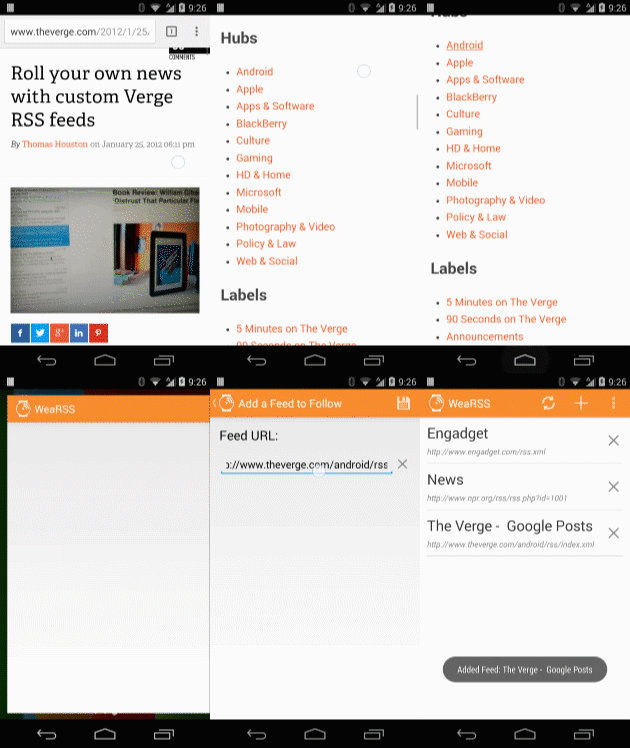
On The Verge's site, I found a "Subscribe" link down in the footer of their home page. However, as is common with many sites, The Verge actually has another set of feeds availablex. I found this post going over a way to "roll your own" RSS feed based on a variety of criteria. I'm going to use the "Android" feed.

Copy & Add - That's It!


Once you've found the feed link you want to follow, all you need to do is long-press on the link to bring up the Android context menu. Select the "Copy link address" option to copy the link to the device clipboard.

Finally, open WeaRSS and tap the "+" icon to open the Add Feed screen. The screen will open and the link you copied will already be in the the URL field. All you have to do is tap the save icon and your feed will be added.

Happy Reading!


Sunday, November 9, 2014

Introducing WeaRSS!

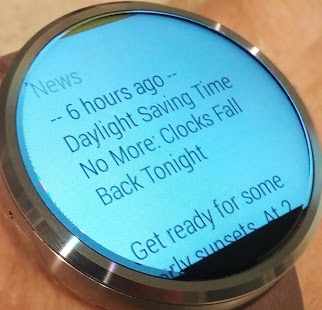
I'm excited to announce my latest Android app called WeaRSS - it's an Android Wear app that allows you to keep up with the latest news headlines right on your Android Wear device!
I wish this was the news every day.
I made the app because I thought it would be convenient to quickly glance through news headlines on a Wear device; there are times when it might not be convenient or possible to pull out your phone but you still want to stay in the loop. Also, you don't always need access to the full story; getting a glanceable version of the story is just right.

Getting Going


With WeaRSS you get news updates by following RSS feeds. In case you're not fully up on the nerd lingo, RSS feeds are a standardized to share up-to-date web content. You can find a pretty good explanation here. Most websites with regular updates have one or more RSS feed - just poke around on the home page and you'll likely find an "RSS" link.

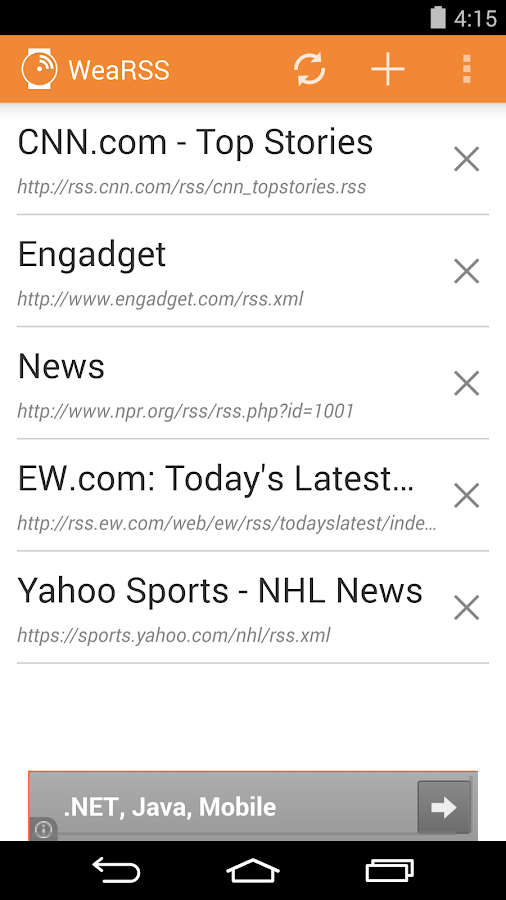
To get things going you just type or paste in RSS urls from your favorite websites to build a list of feeds to follow. In a future blog post I'll go over the process for getting RSS feeds into the app. Add as many feeds as you want! Once you have your feeds, WeaRSS will start pushing news headlines to you at regular intervals.
Following some feeds - add your own!
For this first release there are a couple of customization options:
  • Setup how frequently the headlines are fetched and synced to your wearable.
  • Set how many headlines from each feed will be sent with each update.

Voice Control


You don't have to wait for the sync operation to read through the headlines on your wear device. You can open the app using voice control - just say "OK google, start app my headlines." The app will open showing you the headlines that were most recently synced. You can also hit the refresh button on the companion mobile app to get the latest and greatest.

I've got a lot of ideas about where to take the app in future releases, but I want to find out what other people want. Leave a comment or send me an email and let me know what you'd like to see in the app.

I hope you find the app useful and it makes your Android Wear device just a little bit better!

Get it on Google Play

Wednesday, September 25, 2013

Maven Central's 'artifactid' is build.gradle's 'name' property

Recently I wanted to utilize a third party library in one of my Android applications. The library is available via Maven Central, and since I'm now using Android Studio for development I thought I'd use gradle to auto-import the library. I knew this was possible and relatively straightforward, but I ran into something that threw me for a loop and that I couldn't find documented officially anywhere. I figured I'd share what I found to hopefully save someone else the potential hassle.

At the bottom of each Android app's build.gradle file is the section where you reference third party libraries that will automatically come from Maven Central. For most Android apps the support library is included:
dependencies {
    compile 'com.android.support:support-v4:18.0.0'
    //This is where references to the third party libs go
}
To get a library to work in gradle from Maven, it needs 3 pieces of information. For every library, Maven central provides 3 primary pieces of information. Respectively, the fields for each are:
//Gradle Info:
group: 'com.example.library'  //The package name for the library
name: 'someuniquename'        //An identifier for the lib
version: 'X.Y.Z'              //lib version number

//Maven Info:
groupId: 'com.example.library'  //The package name for the library
artifactId: 'someuniquename'    //An identifier for the lib
version: 'X.Y.Z'
It seemed pretty obvious that "group" and "groupId" would line up in both places. But here was my gotcha point: when referencing the maven library, the "artifactId" value from Maven is what you use for gradle's "name" property.

Like I said, I couldn't find this documented anywhere. On a different project previously I attempted to bring in a Maven library and it didn't go so well. It could have been due to a buggier, earlier version of Android Studio, but not knowing this bit of info certainly didn't help.

When you bring it all together, this is what the build.gradle file will look like:
dependencies {
    compile 'com.android.support:support-v4:18.0.0'
    compile group: 'com.example.library', name: 'someuniquename', version: 'X.Y.Z'
}

Tuesday, January 15, 2013

How to: Receive NFC data in an Adobe AIR Android app

Getting NFC data into an Adobe AIR for Android application is much easier than it might seem. At least, it's a lot easier than I thought it would be.

I'm currently working on an app that has just such a need. Specifically, users will run the AIR app and then swipe their device over a physical display that has some NFC tag hotspots. The app needs to receive the NFC data from each tag and react in a specific fashion. I didn't know much about NFC data when I began working on this current app, and since AIR doesn't have official support for NFC I figured I would need a native extension to properly handle things.

It turns out it is *much* simpler than needing to implement any sort of native functionality. All you have to do is add the proper intent handling to the "manifestAdditions" portion of the AIR application xml. I'll put a sample xml block here, and then explain it:


The key to making everything work is in effect "extending" the <application> node - which prior to discovering this I didn't know was possible. By adding the appropriate NFC intent filter information - the "default" way you handle NFC data in Android - the AIR application is handed the day the same way any other Android application would be.

In the xml sample above, I have  my AIR app responding to a URI. I've got placeholders for the scheme and host attribute values. Most commonly these will represent a web URL; in that case scheme would be "http" and host would be the domain - "yourdomain.com". But if you want to use proprietary data, you can do that too. Scheme and host can be anything. Scheme could be "my" and host could be "uri.value" which would represent "my://uri.value." It doesn't really matter, the data will make it to the AIR app. This is just one way of targeting NFC data into an app - there are a number of different ways to use intent filters in Android to target varied NFC data types. Virtually all of them should work as manifest extensions for an AIR app. The Android documentation has information about targeting NFC data here.

Extending the manifest only gets us so far; it doesn't tell us how the data gets into the AIR application. Thankfully, Adobe has facilitated that too. Anytime the app responds to intent filter data, an InvokeEvent.INVOKE event gets fired. Check out the below class:

To be clear, the invoke event will in fact be fired when the app starts up, but will *also* be fired whenever the NFC intent data qualifies and is passed to the app. This means that the app will be handed any and all relevant NFC data and can respond by reading the events.arguments data.

This also has the added effect of launching your AIR application whenever the relevant NFC data is swiped. That's actually what Android generally means to have happen with NFC data - the user swipes their device and the relevant specific application is opened. This will in fact do that. But as this post discusses, it will also pass in the NFC data while the application is running.

If you aren't wanting the app to be launched on NFC data but instead *only* respond to the NFC data while the application is open, that requires more complexity. It does, in fact require a native extension interacting with something called the "Foreground Dispatch". A very intelligent person has actually cracked the code and has made, well, the source code available for free! You can see it here:

http://code.google.com/p/ane-lab/source/browse/#svn%2Ftrunk%2Fmobile%2Fandroid%2Fjava%2Fnfc-foreground-dispatch

I hope this helps!